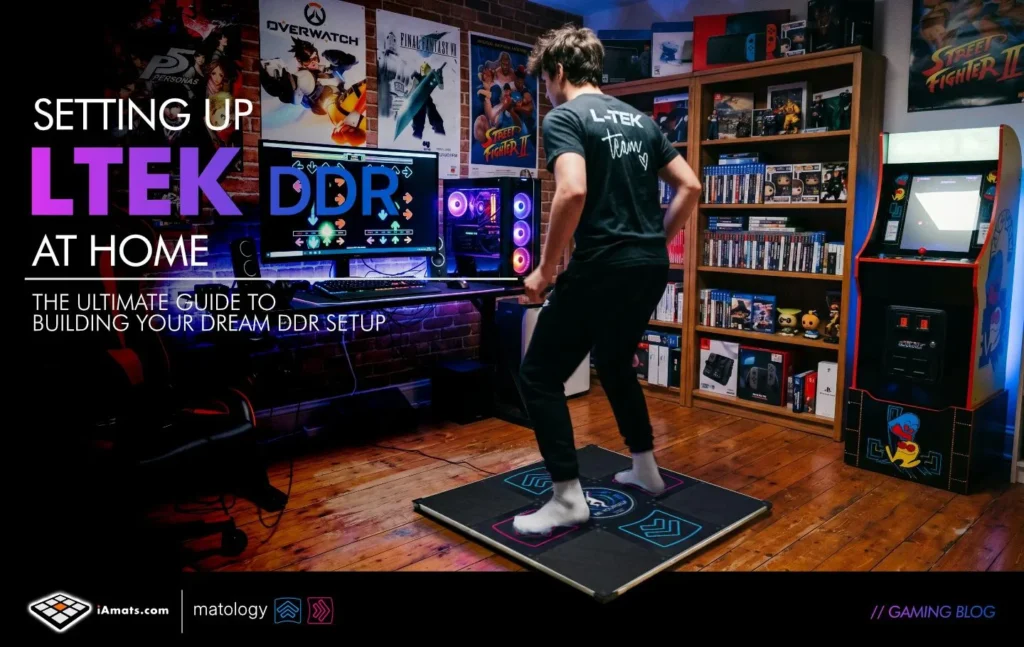
Setting up an LTEK dance pad for rhythm games like StepMania or ITGMania is easier than many new players expect — but proper configuration makes a huge difference in gameplay quality.
A correctly configured setup improves:
- timing accuracy
- input responsiveness
- gameplay smoothness
- overall rhythm game experience
This guide explains how to properly set up an LTEK dance pad on PC using:
- StepMania
- ITGMania
- Project OutFox
Whether you are completely new to DDR or upgrading from a soft dance mat, this walkthrough will help you get started quickly.
- What Is an LTEK Dance Pad?
- Step 1 — Connect the LTEK Pad to Your PC
- Setup Instructions
- Step 2 — Download StepMania or ITGMania
- StepMania
- ITGMania
- Step 3 — Configure Input Mapping
- Step 4 — Calibrate Timing
- Recommended Settings for LTEK Pads
- StepMania vs ITGMania for LTEK Players
- Common LTEK Setup Problems
- Best Song Packs for New Players
- Why Players Choose LTEK Pads
- Final Thoughts
- FAQ
- Does LTEK work with StepMania?
What Is an LTEK Dance Pad?
LTEK pads are hard dance mats designed for home rhythm gaming.
Unlike soft foldable mats, LTEK controllers use:
- rigid panels
- arcade-style inputs
- durable construction
- USB PC connectivity
They are commonly used for:
- DDR (Dance Dance Revolution)
- ITG (In The Groove)
- StepMania
- community rhythm game simulators
Many players consider LTEK one of the best home DDR pad options currently available.
Step 1 — Connect the LTEK Pad to Your PC
Most LTEK dance pads are plug-and-play.
Setup Instructions
- Connect the pad via USB
- Wait for Windows to detect the controller
- Open:
- Control Panel
- Devices and Printers
- Game Controller Settings
You should see the dance pad listed as a USB controller.
Test each arrow panel to confirm all inputs register correctly.
Step 2 — Download StepMania or ITGMania
StepMania
StepMania is the classic DDR simulator and one of the most popular rhythm game platforms ever created.
Best for:
- beginners
- casual players
- broad song compatibility
ITGMania
ITGMania is a modern fork focused on:
- competitive rhythm gaming
- low-latency gameplay
- active community support
Many experienced LTEK players currently recommend ITGMania for the best overall experience.
Step 3 — Configure Input Mapping
Inside StepMania or ITGMania:
- Open Input Settings
- Select Key/Gamepad Mapping
- Press each panel when prompted:
- Left
- Down
- Up
- Right
Save the configuration once all arrows are detected properly.
Step 4 — Calibrate Timing
Calibration is extremely important.
Even a high-quality LTEK setup can feel inaccurate if timing offsets are incorrect.
Inside your game settings:
- open Calibration
- run automatic sync if available
- test several songs
- adjust offset gradually
The goal is making arrows feel naturally aligned with the music.
Recommended Settings for LTEK Pads
For the best gameplay experience:
| Setting | Recommendation |
|---|---|
| Display Mode | Fullscreen |
| VSync | Disabled |
| Audio | Wired headphones |
| USB Connection | Direct motherboard port |
| Monitor | Gaming monitor preferred |
These changes help reduce latency and improve timing consistency.
StepMania vs ITGMania for LTEK Players
| Feature | StepMania | ITGMania |
|---|---|---|
| Beginner Friendly | Yes | Moderate |
| Active Development | Limited | Yes |
| Competitive Features | Basic | Advanced |
| Latency Handling | Good | Excellent |
| Community Support | Huge | Growing |
For beginners, either option works well.
For long-term rhythm gaming, many players eventually move to ITGMania.
Common LTEK Setup Problems
Pad Not Detected
Try:
- reconnecting USB
- restarting the game
- testing another USB port
Inputs Feel Delayed
Usually caused by:
- incorrect calibration
- TV display lag
- Bluetooth audio delay
- VSync latency
Pad Sliding During Gameplay
Popular fixes include:
- anti-slip mats
- gym flooring
- rubber padding underneath the pad
Best Song Packs for New Players
Beginner-friendly packs often include:
- DDR 1st Mix
- DDR Extreme beginner charts
- easy community starter packs
- lower BPM rhythm tracks
Avoid jumping directly into expert-level community packs.
Why Players Choose LTEK Pads
Compared to soft dance mats, LTEK setups provide:
- better stability
- more accurate input detection
- arcade-like gameplay feel
- improved durability
This makes them especially popular among serious rhythm game players.
Final Thoughts
A properly configured LTEK setup can deliver an incredibly smooth home DDR experience.
The key steps are:
- correct input mapping
- proper calibration
- low-latency settings
- beginner-friendly song selection
Once everything is configured correctly, StepMania and ITGMania become excellent platforms for both casual and competitive rhythm gaming.
FAQ
Does LTEK work with StepMania?
Yes. LTEK dance pads are fully compatible with StepMania on PC.
Is ITGMania better than StepMania?
Many players prefer ITGMania because of its active development, improved latency handling, and modern features.
How do I calibrate an LTEK pad?
Use the calibration or offset settings inside StepMania or ITGMania and adjust timing gradually using easy songs.
Why does my LTEK pad feel delayed?
The most common causes are incorrect calibration, Bluetooth audio delay, TV latency, or VSync settings.
Are LTEK pads good for beginners?
Yes. LTEK hard pads are stable, accurate, and much easier to learn on than soft dance mats. See: https://www.iamats.com/shop/dance-mat-ltek-prime/
- Dance Pads in Singapore (2026): Where to Play, What to Buy, How to Import
- The Best DDR Pad for Home in 2026
- What makes a great StepMania dance pad?
- Patent US12186654B2 Explained — How L-TEK’s Wireless Dance Mat Works, and Where It’s Used
- Dance Mat vs Beat Saber / VR Fitness: Which Is Better for Home Cardio in 2026?