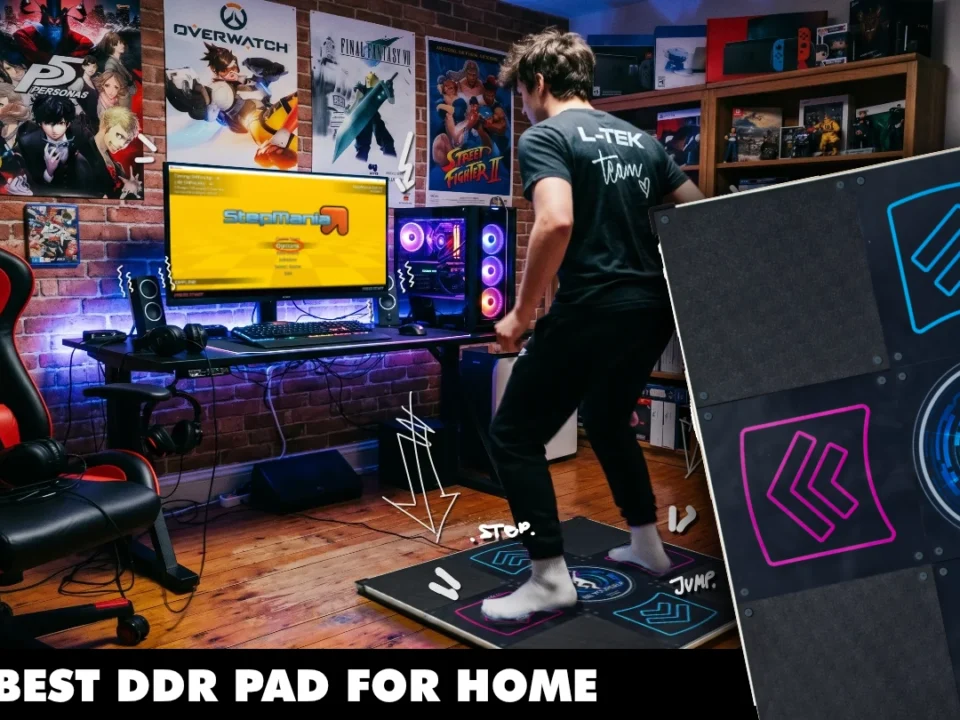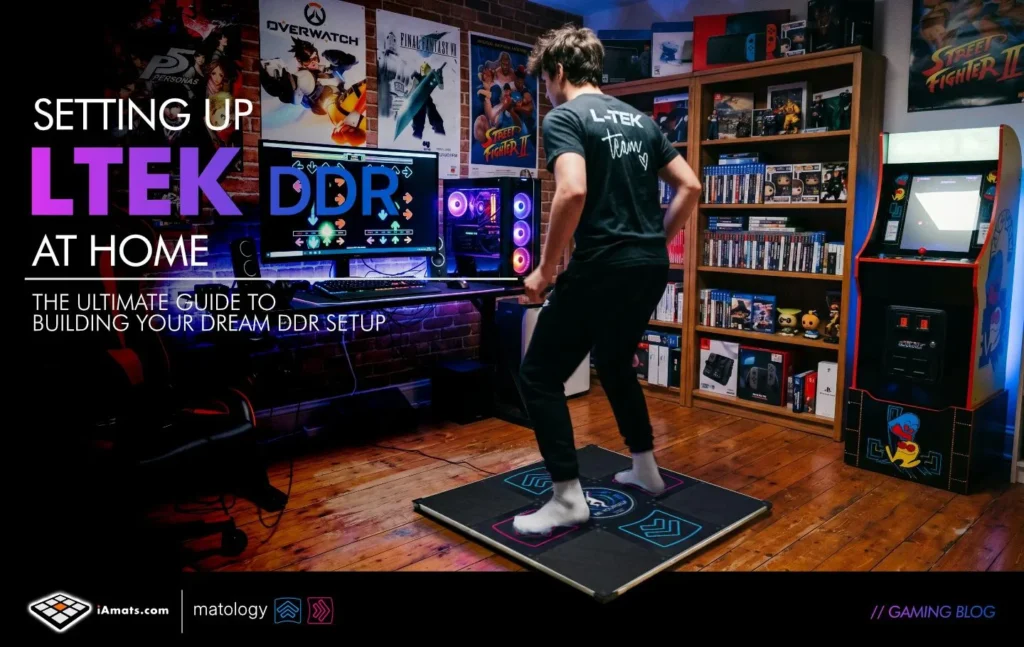
The recent Linus Tech Tips LTEK Prime video brought a huge wave of attention back to rhythm gaming and home dance setups. After showcasing an LTEK dance pad during a live gameplay session, many players started searching for the best way to set up a DDR pad on PC, which software to use, and how to properly calibrate the pad for accurate gameplay.
If you recently bought an LTEK interactive dance mat — or you are planning to — this guide will walk you through the complete setup process for modern DDR gaming on PC.

What DDR Pad Did Linus Tech Tips Use?
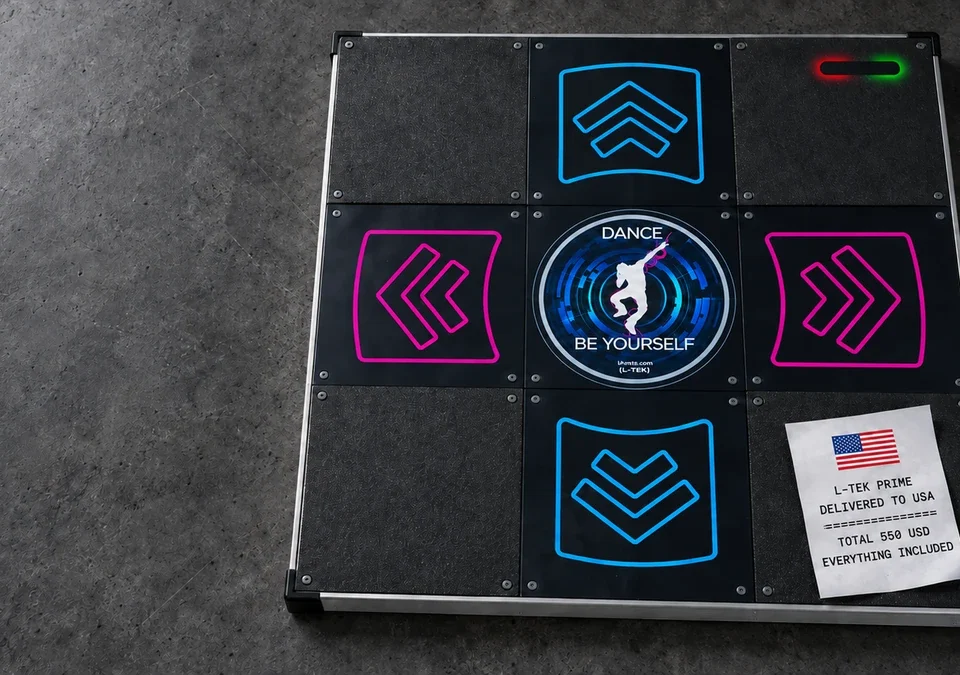
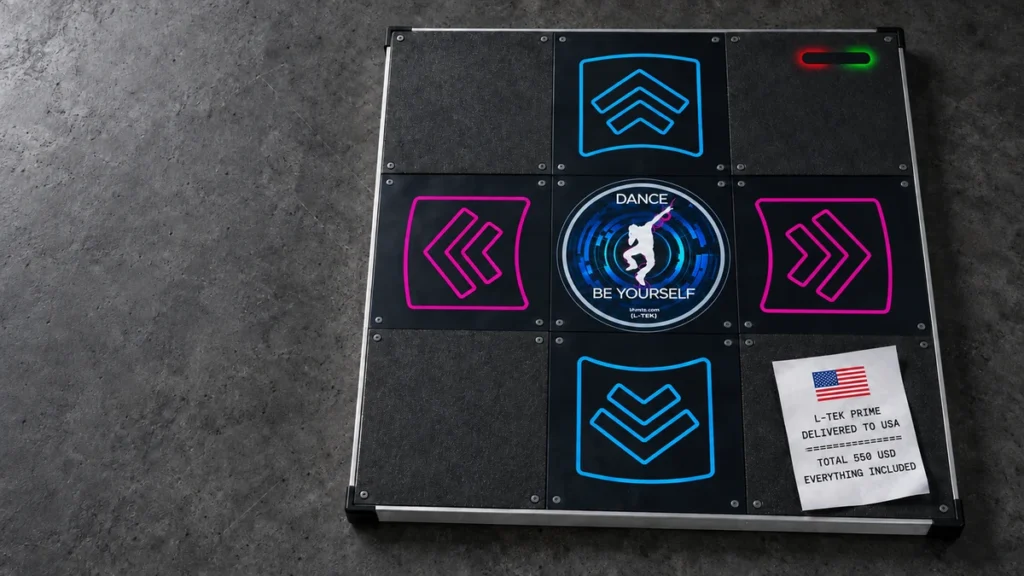
The setup featured an LTEK hard dance pad designed for PC rhythm games like:
- StepMania
- ITGMania
- Project OutFox
Unlike cheap soft dance mats, LTEK pads are built with arcade-style panels and offer significantly better stability, responsiveness, and durability for long-term play.
Many players consider LTEK one of the best home DDR pad options currently available for serious rhythm gaming enthusiasts.
How to set up an LTEK DDR Pad on PC
1. Connect the DDR Pad via USB
Most LTEK dance pads are plug-and-play on Windows PCs.
Steps:
- Connect the pad using the included USB cable
- Wait for Windows to recognize the controller
- Open:
- Control Panel
- Devices and Printers
- Game Controller Settings
You should see the DDR pad detected as a USB game controller.
2. Install DDR Software
To actually play DDR-style games, you need rhythm game software.
The most popular options are:
| Software | Best For | Notes |
|---|---|---|
| StepMania | Beginners | Classic and widely supported |
| ITGMania | Competitive players | Modern fork with active updates |
| Project OutFox | Advanced customization | Modern graphics and features |
For most new players, ITGMania is currently considered the best overall option because it combines modern support with strong community maintenance.
StepMania vs ITGMania vs Project OutFox
StepMania
The classic DDR simulator used by rhythm gamers for years.
Pros:
- Huge song compatibility
- Lightweight
- Easy to install
Cons:
- Older engine
- Less actively maintained
ITGMania
A modern continuation focused on performance and competitive rhythm gaming.
Pros:
- Better timing accuracy
- Improved latency handling
- Active development
Cons:
- Slightly more technical setup
Project OutFox
A heavily modernized rhythm game engine.
Pros:
- Beautiful visuals
- Advanced customization
- Supports multiple rhythm game styles
Cons:
- Can feel overwhelming for beginners
IMPORTANT: Calibrate Your DDR Pad
Calibration is the most important part of any DDR setup.
Even the best dance pad can feel “wrong” if audio timing and input latency are not configured properly.
Inside your rhythm game settings:
- Open Input or Calibration Settings
- Run automatic calibration if available
- Test several songs
- Adjust offset until arrows match the beat naturally
Poor calibration is one of the biggest reasons beginners think their pad is inaccurate.
Best Settings for LTEK DDR Pads
Recommended beginner setup:
- Fullscreen mode enabled
- VSync disabled
- Wired headphones if possible
- USB connected directly to motherboard
- Stable non-slip floor surface
If your pad moves during gameplay, consider:
- gym flooring
- anti-slip mats
- foam protection underneath
Common DDR Pad Setup Problems
Pad Inputs Not Detected
Try:
- reconnecting USB
- restarting the game
- testing another USB port
Input Delay or Lag
Usually caused by:
- Bluetooth audio
- TV processing delay
- incorrect calibration
Gaming monitors generally provide much better latency than TVs.
Pad Sliding on the Floor
Hard dance pads can move during intense gameplay sessions.
Popular solutions include:
- yoga mats
- gym flooring
- anti-slip rubber pads
Best Beginner Songs for New DDR Players
Start with slower charts before jumping into advanced content.
Good beginner-focused packs usually include:
- classic DDR songs
- pop remixes
- lower BPM tracks
- easy 4-panel patterns
Consistency and stamina matter more than speed at the beginning.
Is an LTEK DDR Pad Worth It?
For players who want a real home arcade experience, LTEK pads are often considered one of the best investments in rhythm gaming.
Compared to soft mats, they offer:
- better accuracy
- improved durability
- stronger stability
- more consistent performance
While shipping costs can be high depending on your region, many players consider them worth it for long-term use.
Final Thoughts
The recent Linus Tech Tips DDR setup video helped introduce a new generation of players to rhythm gaming.
But the real key to enjoying a DDR pad is proper setup:
- choose the right software
- calibrate carefully
- optimize latency
- start with beginner-friendly charts
Once configured properly, an LTEK setup can deliver an experience surprisingly close to a real arcade machine.
FAQ
What DDR pad did Linus Tech Tips use?
The setup featured an LTEK hard dance pad designed for PC rhythm games like StepMania, ITGMania, and Project OutFox.
What is the best software for LTEK DDR pads?
ITGMania is currently one of the most recommended options because of its active development, timing accuracy, and strong community support.
Do LTEK dance pads work on PC?
Yes. LTEK dance pads are plug-and-play USB controllers compatible with Windows PCs and rhythm game software like StepMania and ITGMania.
Why does my DDR pad feel delayed?
Input delay is usually caused by incorrect calibration, Bluetooth audio latency, or TV display processing delay.
Are LTEK pads better than soft dance mats?
Most serious rhythm gamers prefer LTEK hard pads because they offer better stability, durability, and input accuracy compared to soft dance mats.
Latest post
- What Will I Actually Pay? Total Landed Cost for a Dance Pad Shipped to the USA
- Dance Pads in Singapore (2026): Where to Play, What to Buy, How to Import
- The Best DDR Pad for Home in 2026
- What makes a great StepMania dance pad?
- Patent US12186654B2 Explained — How L-TEK’s Wireless Dance Mat Works, and Where It’s Used